Replace Strings
The Replace Strings action finds and replaces one or more sections of text. Each replacement can use an exact string, start and end markers, or a regular expression. The action applies replacements in order and stores the final text for subsequent actions.
When to Use This Action
Use this action when:
- You need to remove a standard signature, disclaimer, header, or footer from text
- You want to rename or normalize words and phrases before using the text elsewhere
- You need to replace content between known start and end markers
- You need a regular expression to locate variable content such as IDs or tokens
- You want to perform several related replacements in one action
Don't use this action for:
- Extracting values for later use: Use Extract Strings when you need named values from the source text.
- Converting text formats: Use Convert Text when you need to convert among HTML, Markdown, and Plaintext.
- Building new text without replacing content: Use Render Text and Store as Variable.
How It Works
- The action fills in any text expressions in the selected Input value.
- The action processes each item under Replacements in order.
- Each successful replacement updates the text used by the next replacement.
- If a replacement finds no match, the Required option determines whether the action fails or continues.
- The action stores the final string in the result variable you configure.
Configuration
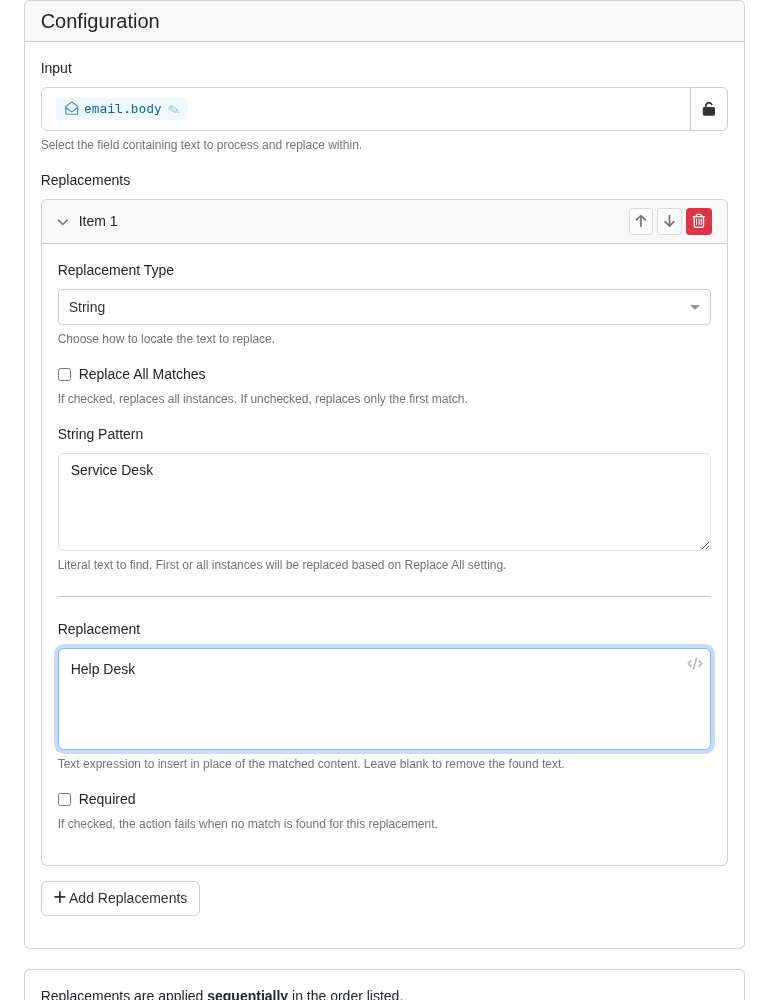
Input
Select the field that contains the text you want to change. You can unlock the field to enter a text expression or custom text.
Replacements
Add one or more replacement definitions. The action applies them from top to bottom, so an earlier replacement can affect whether a later replacement finds a match.
| Field | Description | Default |
|---|---|---|
| Replacement Type | Chooses how the action locates text: String, Start/End Match, or Regular Expression. | String |
| Replace All Matches | Replaces every match when enabled. Replaces only the first match when disabled. | Disabled |
| Replacement | Text to insert in place of the match. Supports text expressions. Leave this field blank to remove the matched text. | Empty |
| Required | Fails the action when no match is found. When disabled, the action records a warning and continues. | Disabled |
String
Use String for exact, case-sensitive text replacement.
| Field | Description |
|---|---|
| String Pattern | The exact text to find. This field does not support text expressions. |
For example, find Acme Support Services and replace it with Acme Help Desk. Enable Replace All Matches to rename every occurrence.
Start/End Match
Use Start/End Match to replace text between two markers. The action finds a start match, then uses the first end match after it.
| Field | Description | Default |
|---|---|---|
| Start is Regex | Uses Start Regex instead of an exact Start String. | Disabled |
| Start String | The exact text that marks the beginning of the section. | Empty |
| Start Regex | A regular expression that locates the beginning of the section. Include regex delimiters. | Empty |
| Include Start | Replaces the start match along with the content between the markers. | Disabled |
| End is Regex | Uses End Regex instead of an exact End String. | Disabled |
| End String | The exact text that marks the end of the section. | Empty |
| End Regex | A regular expression that locates the end of the section. Include regex delimiters. | Empty |
| Include End | Replaces the end match along with the content between the markers. | Disabled |
For example, use -- Legal Notice -- as the start string and -- End Legal Notice -- as the end string. Enable Include Start and Include End, then leave Replacement blank to remove the complete notice.
Regular Expression
Use Regular Expression when the text follows a pattern rather than an exact value.
| Field | Description |
|---|---|
| Regex Pattern | A PCRE2 regular expression with delimiters. The pattern can contain zero or one capture group. |
With no capture group, the action replaces the full match. With one capture group, the action replaces only the captured portion and preserves the rest of the full match.
For example, the pattern /Device ID:\s*([A-Z0-9-]+)/ with the replacement REDACTED changes Device ID: ABC-123 to Device ID: REDACTED.
Returned Variables
When you configure Store the results in Variable, the final text becomes available to subsequent actions.
| Variable | Type | Description |
|---|---|---|
| (root) | string | The text after all replacement definitions have run |
Access the result with {{custom.<variableName>}}, where <variableName> is the variable name you assign to this action.
Example: Remove a Signature and Rename a Team
Suppose an email body includes a standard signature and refers to Service Desk, but the ticket note should use Help Desk.
- Set Input to the email body.
- Add a Start/End Match replacement that removes the signature block.
- Add a String replacement that changes
Service DesktoHelp Desk. - Enable Replace All Matches for the team-name replacement if the phrase can appear more than once.
- Store the result as
CleanBodyand use{{custom.CleanBody}}in the ticket note action.
FAQs
What happens if a pattern is not found?
When Required is disabled, the action records a warning, leaves the current text unchanged, and continues to the next replacement. When Required is enabled, the action fails and stops processing its remaining replacements.
Are replacements case-sensitive?
String and start/end string matches are case-sensitive. For case-insensitive matching, use a regular expression with the i modifier, such as /service desk/i.
Can the replacement use automation data?
Yes. Replacement supports text expressions such as {{email.subject}} or {{custom.accountName}}. String Pattern does not support text expressions.
Why did a later replacement not match?
The action applies replacements sequentially. Review earlier definitions because they may have changed or removed the text that the later definition expected.