Extract Strings
The Extract Strings action extracts multiple named values from text in a single step, storing all results together in one object. Each definition in the action specifies what to extract, how to extract it, and what to do if nothing is found.
When to Use This Action
Use this action when:
- You need to pull several distinct values out of a piece of text at once
- You want to build structured data from an email body or other unstructured text
- Some of your extractions are best done with text expressions and others with regex patterns
- You want independent control over what happens when each individual extraction returns empty
Don't use this action for:
- Single value extraction: Use Render Text and Store as Variable instead, which is simpler for one-off extractions.
- Finding all matches of a pattern: Use Perform a Regular Expression Match with "Return all matches" enabled, which returns an array of every match found.
- Complex multi-capture-group regex: Use Perform a Regular Expression Match with named capture groups, which supports multiple groups per pattern.
How It Works
When this action runs, it processes each definition in order:
- For each definition, the action evaluates the extraction using either the text expression or the regular expression you configured.
- The extracted value is stored on a result object under the property name you specified in the Variable field.
- If the extraction returns an empty value, the action applies the If Empty behavior you configured for that definition.
- Once all definitions are processed, the result object is stored and accessible to subsequent actions.
Configuration
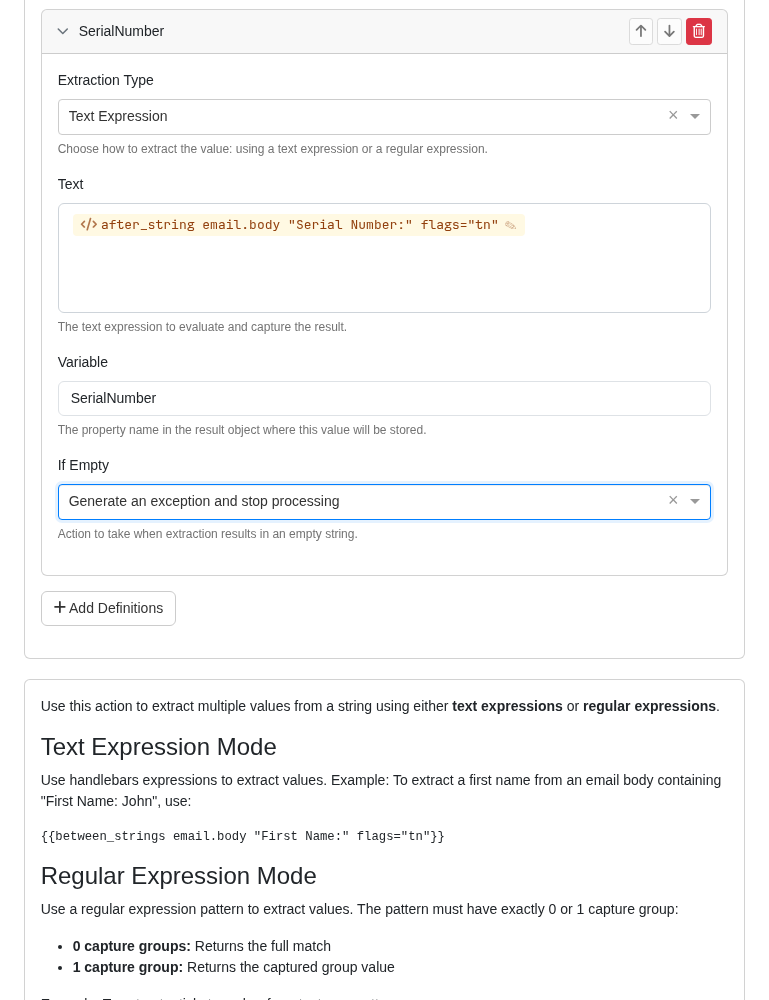
Definitions
Each definition extracts one value. Add as many definitions as you need. Definitions with no Variable name are skipped.
Extraction Type
Choose how the value is extracted:
| Option | Description |
|---|---|
| Text Expression | Evaluates a handlebars expression using the automation's data |
| Regular Expression | Matches a regex pattern against an input string you provide |
Text Expression Mode
When Extraction Type is set to Text Expression, configure:
Text
The handlebars expression to evaluate. This can reference any available automation variable and supports all text helpers.
Examples:
{{after_string email.body "First Name:" flags="tn"}}- Extract the text following "First Name:" in the email body{{email.from.address}}- Capture the sender's email address directly{{uppercase email.subject}}- Transform and store the email subject
Regular Expression Mode
When Extraction Type is set to Regular Expression, configure:
Pattern
The regular expression pattern to match. Must be a valid PCRE2 pattern including delimiters (e.g., /pattern/flags). The pattern must have exactly 0 or 1 capture group:
- 0 capture groups: The full match is returned
- 1 capture group: The value inside the capture group is returned
- 2 or more capture groups: The action stops with an error
Examples:
/T20[0-9]{6}\.[0-9]{4}/- Match an Autotask ticket number (full match returned)/Ticket:\s*(T20[0-9]{6}\.[0-9]{4})/- Match and capture just the ticket number (capture group returned)/\(?\d{3}\)?[-.\s]?\d{3}[-.\s]?\d{4}/- Match a US phone number
Input
The text to search using the pattern. Supports {{variable}} syntax.
Examples:
{{email.body}}- Search the email body{{email.subject}}- Search the email subject{{custom.previousResult}}- Search a value from a previous action
Variable
The property name used to store this extracted value on the result object. For example, entering FirstName stores the result at {{custom.<actionVariable>.FirstName}}.
Variable names with no value are skipped entirely.
If Empty
Controls what happens when an extraction returns an empty string (no match or blank result):
The dropdown only shows choices valid for the current automation type. In a Macro, it shows Continue processing, Exit macro, and Generate an exception and stop processing.
| Option | Availability | Behavior |
|---|---|---|
| Continue processing | All automations | Store an empty string for this variable and continue with remaining definitions |
| Stop current rule | Hosted Mailbox and Remote Mailbox | Stop processing this rule's remaining actions, but continue other matched rules |
| Stop all rules | Email Processing, Scheduled Tasks, Forms, PSA Workflows, and Agentic Actions | Stop the entire automation |
| Exit macro | Macros | Return the Macro's available output and continue the calling automation |
| Generate an exception and stop processing | All automations | Halt execution, mark the run as failed, and send a failure notification |
| Bounce email to sender | Hosted Mailbox and Remote Mailbox | Return the message to the sender |
Returned Variables
The action stores a single object with one property per definition. Each property is named after the Variable value you configured.
| Variable | Type | Description |
|---|---|---|
<Variable> | string | The extracted value for that definition, or an empty string if nothing was found |
Access syntax: {{custom.<actionVariable>.<Variable>}}
For example, if your action is stored as Extracted and you defined variables FirstName and Phone, access them as {{custom.Extracted.FirstName}} and {{custom.Extracted.Phone}}.
Example: Extract Contact Info from an Email Body
Given an email body like:
First Name: Jane
Last Name: Smith
Phone: 555-867-5309
Configure three definitions:
| Variable | Extraction Type | Expression / Pattern |
|---|---|---|
FirstName | Text Expression | {{after_string email.body "First Name:" flags="tn"}} |
LastName | Text Expression | {{after_string email.body "Last Name:" flags="tn"}} |
Phone | Regular Expression | Pattern: /\(?\d{3}\)?[-.\s]?\d{3}[-.\s]?\d{4}/, Input: {{email.body}} |
After the action runs (stored as ContactInfo), the values are available as:
{{custom.ContactInfo.FirstName}}→Jane{{custom.ContactInfo.LastName}}→Smith{{custom.ContactInfo.Phone}}→555-867-5309
Notes
- Definitions are processed in order. If a definition triggers a stop action (anything other than "Continue processing"), remaining definitions are not evaluated.
- If the regex pattern is missing for a Regular Expression definition, the action stops with an error.
- An invalid regex pattern (one that fails to compile) stops the action with an error.
- If the input text or text expression produces an object or array instead of text, the action converts it to JSON text before extraction.