Connect with an Enterprise App
MSPintegrations can connect to Microsoft 365 using an Enterprise App instead of signing in as a Microsoft user. An Enterprise App authenticates with a tenant ID, an application ID, and a client secret, so the connection does not depend on a licensed mailbox user or an interactive sign-in.
Not sure this is the right connection type for you? See Delegated User or Enterprise App for a comparison.
Before You Start
You need an account in Microsoft Entra ID that can register applications. You also need a Privileged Role Administrator, Global Administrator, or an administrator with an appropriate custom role to grant the Microsoft Graph application permissions used below. Application Administrator and Cloud Application Administrator accounts can add permissions to the app registration, but Microsoft does not allow those roles to grant Microsoft Graph application permissions.
1. Register the Application
- Sign in to the Microsoft Entra admin center
- Switch to the tenant that owns the mailboxes MSPintegrations will poll
- Go to Entra ID, click App registrations, then click New registration
- Enter a name such as
MSPintegrations Remote Mailboxes - Under Supported account types, select Accounts in this organizational directory only
- Leave Redirect URI empty, because MSPintegrations never sends a user through this app to sign in
- Click Register
2. Add Graph Application Permissions
On the app registration, click API permissions, then click Add a permission, then click Microsoft Graph, then click Application permissions.
Add the following permissions:
| Permission | Required | Purpose |
|---|---|---|
Mail.ReadWrite | For Remote Mailboxes | Reads messages during polling, moves messages between folders, updates read status and flags, and creates destination folders |
Mail.Send | For Send Email | Sends messages through Microsoft Graph from mailboxes that the Enterprise App can access |
Application.Read.All | Required | Reads the app registration's client-secret expiration so MSPintegrations can display its status and send expiration reminders |
MailboxSettings.Read | Recommended | Reads the Outlook category list so you can pick categories from a list instead of typing them |
User.Read.All | Optional | Lets MSPintegrations search your tenant and suggest mailbox addresses. Without it, type each mailbox address manually |
Organization.Read.All | Optional | Lets MSPintegrations display your Microsoft tenant name instead of its directory ID |
Select Application permissions for each one. Do not add the similarly named Delegated permissions, because an Enterprise App authenticates without a signed-in user and Microsoft ignores delegated permissions in this flow.
Adding a permission only configures what the application requests. It does not grant the permission, activate it, or automatically create a pending approval request. Microsoft includes the permission in the app's access tokens only after an authorized tenant administrator grants admin consent. If your organization enabled an admin consent request workflow, you can submit a separate request for approval through that workflow.
Then have an authorized tenant administrator finish the consent:
- Remove the default
User.Readdelegated permission if Microsoft added it and nothing else needs it - Click Grant admin consent for [your tenant], then confirm
- Confirm every permission shows Granted for [your tenant] in the Status column
Confirm that every permission you intend to use shows Granted for [your tenant]. Every app needs Application.Read.All so MSPintegrations can monitor its client secret. A polling-only app also needs Mail.ReadWrite. An app used by the Send an Email action also needs Mail.Send. An app that polls and sends needs both mail permissions. Without consent for optional permissions, the related feature remains unavailable. For example, without consent for User.Read.All, Mailbox to Open remains a text field and you enter the mailbox address manually.
3. Create a Client Secret
- On the app registration, click Certificates & secrets, then click Client secrets, then click New client secret
- Enter a description such as
MSPintegrations - Choose an expiration. Microsoft limits client secrets to 24 months and recommends 12 months or less
- Click Add
- Copy the Value column immediately
Copy the Value, not the Secret ID. Microsoft hides the value as soon as you leave the page, and you cannot recover it later. If you lose it, create another secret.
Record the expiration date. Polling stops when the secret expires, so plan to rotate the secret before that date.
4. Collect the Tenant ID and Application ID
Open the Overview page of the app registration and copy:
- Directory (tenant) ID
- Application (client) ID
You now have the three values MSPintegrations needs: the tenant ID, the application ID, and the client secret.
5. Add the Connection in MSPintegrations
- Log in to the MSPintegrations console
- Click Apps in the top bar, then click Email2AT (or Email2CW or Email2Halo)
- On the left sidebar, click Remote Mailboxes
- Scroll to the Microsoft Office 365 Connections pane
- Click Add Enterprise App
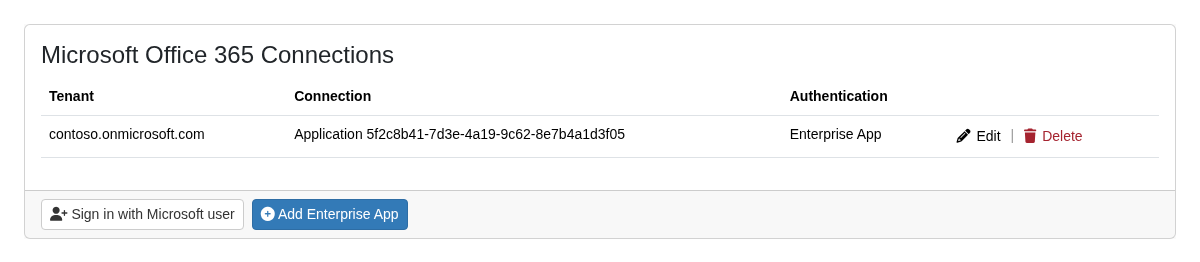
Complete the form:
| Field | Value |
|---|---|
| Tenant ID | The Directory (tenant) ID from the app registration Overview page |
| Client ID | The Application (client) ID from the same page |
| Client Secret | The secret Value you copied in step 3 |
Click Connect to save. MSPintegrations requests a token from Microsoft immediately, so the form reports a problem right away if a credential value is wrong. After the connection saves, it appears in the connections list with Enterprise App in the Authentication column. The Client Secret column shows its expiration status. MSPintegrations sends reminders to your configured Exception Notifications addresses 60, 30, 15, 7, 3, 2, and 1 days before expiration.
If Microsoft does not grant Application.Read.All, the connection can still save and use its mail permissions, but the Client Secret column shows Unknown and MSPintegrations cannot send expiration reminders.
MSPintegrations encrypts the client secret and never displays it again.
6. Create the Remote Mailbox
- On the Remote Mailboxes page, click New Remote Mailbox
- Set Connection Type to the Microsoft option
- In Microsoft Office 365 Connection, select your Enterprise App connection
- In Mailbox to Open, choose or enter the mailbox this Remote Mailbox polls
- Choose the Path to poll, such as
INBOX - Set Destination if you want processed messages moved to another folder
- Check Enable polling, then save
Mailbox to Open is required for every Enterprise App Remote Mailbox. An Enterprise App has no mailbox of its own, so MSPintegrations cannot infer which mailbox to poll the way it can for a delegated user connection.
If you granted User.Read.All, the field searches your tenant as you type and suggests matching addresses. If you did not grant it, the field explains that discovery is unavailable and you type the full address yourself. Typed addresses work exactly the same as discovered ones.
Create one Remote Mailbox per mailbox you want to poll. A single Enterprise App connection can back as many Remote Mailboxes as you need.
Rotate the Client Secret
Rotate the secret before it expires, or any time you suspect it leaked:
- Create a new client secret on the same app registration, following step 3 above
- In the console, open Remote Mailboxes and find the connection in the Microsoft Office 365 Connections pane
- Click Edit on that connection
- Next to Client Secret, click Change
- Enter the new secret, then click Update
- Delete the old secret in the Microsoft Entra admin center
The tenant ID and application ID stay read-only during rotation, because a different application is a different connection. MSPintegrations validates the replacement secret with Microsoft before saving it, so a bad value never replaces a working one. Polling continues without reconfiguring your Remote Mailboxes or rules.
Limitations
Keep the following in mind when you plan an Enterprise App connection.
- Broad mailbox access by default: the
Mail.ReadWriteandMail.Sendapplication permissions can grant access across the tenant. To limit an Enterprise App to specific mailboxes, restrict the service principal with Exchange Online RBAC for Applications, and remove the matching tenant-wide grant in Microsoft Entra ID so the grants do not combine. - Application metadata access:
Application.Read.Allgrants read access to app registrations across the tenant. MSPintegrations uses it to read this connection's client-secret metadata and does not receive secret values from Microsoft. - Send Email requires an explicit sender: select the Enterprise App in the Send an Email action and enter the sending mailbox in From Address. The app does not have a default mailbox and will not fall back to another sender.
- No Reconnect action: delegated connections show a Reconnect action for repairing consent. Enterprise Apps show Edit instead, because rotating the secret is the equivalent repair.
- Delete is blocked while in use: remove or repoint every Remote Mailbox that uses the connection before you delete it.
Troubleshooting
The connection will not save
MSPintegrations validates the credential with Microsoft before saving, so a failure here means Microsoft rejected the values. Confirm you pasted the secret Value rather than the Secret ID, confirm the tenant ID and application ID come from the same app registration, and confirm you clicked Grant admin consent. If you added the same tenant and application twice, the form reports that the credential already exists; edit the existing connection instead.
Mailbox suggestions do not appear
The Mailbox to Open field needs the optional User.Read.All application permission to search your tenant. Confirm you added it under Application permissions and that its Status shows Granted for [your tenant]. A permission that appears in the list without that Granted status has no effect. After an administrator grants consent, reopen the page. You can always type the full mailbox address instead.
Grant admin consent is unavailable
Adding a permission and granting it are separate operations. If Grant admin consent for [your tenant] is disabled or unavailable, your account does not have a role that can grant the requested Microsoft Graph application permissions. Ask a Privileged Role Administrator, Global Administrator, or an administrator with an appropriate custom role to complete the consent. If your organization uses an admin consent request workflow, submit the request through that workflow and wait for approval.
The folder list will not load
Confirm you selected a mailbox in Mailbox to Open first, because MSPintegrations cannot list folders without knowing which mailbox to open. Then confirm the mailbox exists, has an Exchange Online mailbox, and falls inside any Exchange RBAC scope you configured. Microsoft caches application permission changes for up to two hours, so a recent permission change may not apply yet.
Categories are unavailable in an automation
Reading the Outlook category list requires the MailboxSettings.Read application permission. Add it and grant admin consent. Until then, type category names manually.
The client secret status is Unknown
Secret expiration monitoring requires the Application.Read.All application permission. Add it under Application permissions, click Grant admin consent for [your tenant], and confirm its Status shows Granted for [your tenant]. Reopen the connections page after Microsoft applies the permission.
Polling stopped working
An expired client secret is the most common cause. Check the expiration on the app registration, then rotate the secret. Also confirm nobody deleted the app registration or revoked admin consent, and confirm the polled mailbox still exists.
If polling still fails, contact us for help.