Add Tag to Autotask Ticket
A ticket tag can help your team group, filter, or report on tickets, but an automation needs the ticket's ID before it can add one. This tutorial adds the Television tag to a ticket that an earlier action already found or created.
Before You Start
You need:
- An Autotask connection
- A tag that already exists in Autotask, such as
Television - A ticket stored by an earlier query or create step, for example in
custom.ticket
When an action stores a ticket in custom.ticket, {{custom.ticket.id}} contains the ticket ID that the next step needs.
Add the Tag
- After the step that finds or creates the ticket, click Add Action.
- Select API: Create an Object, then click OK.
- Name the step
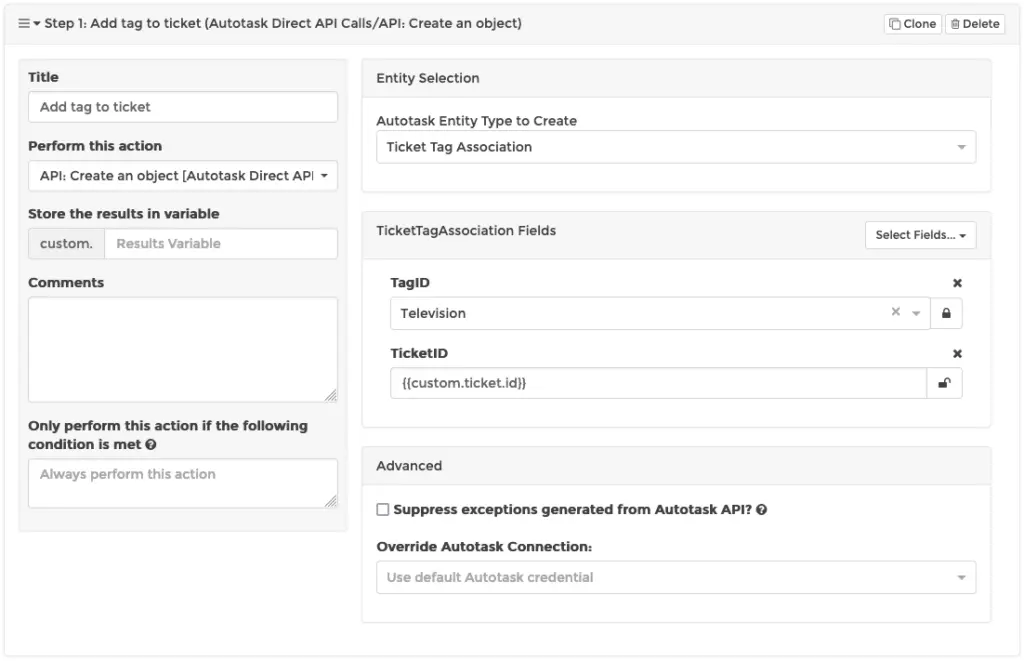
Add Tag to Ticket. - Set Autotask Entity Type to Create to
Ticket Tag Association. - Add the fields shown in the screenshot:
- Choose
Televisionfor TagID, or choose the tag you want to add. - Unlock TicketID and enter
{{custom.ticket.id}}.
- Choose
- Save the rule.
Unlocking TicketID lets you enter a variable instead of choosing one fixed ticket. Each run uses the ID from the ticket that the earlier step found or created.
What Happens Now
- The earlier step finds or creates a ticket and stores it in
custom.ticket. - The tag step reads
{{custom.ticket.id}}. - Autotask adds the selected tag to that ticket.
Related Documentation
- API: Create an Object: create Autotask entities directly
- API: Query for One Object: find a ticket for a later action
- Variables: pass a ticket from one action step to the next